


How to Set Up Your Android Finder Card
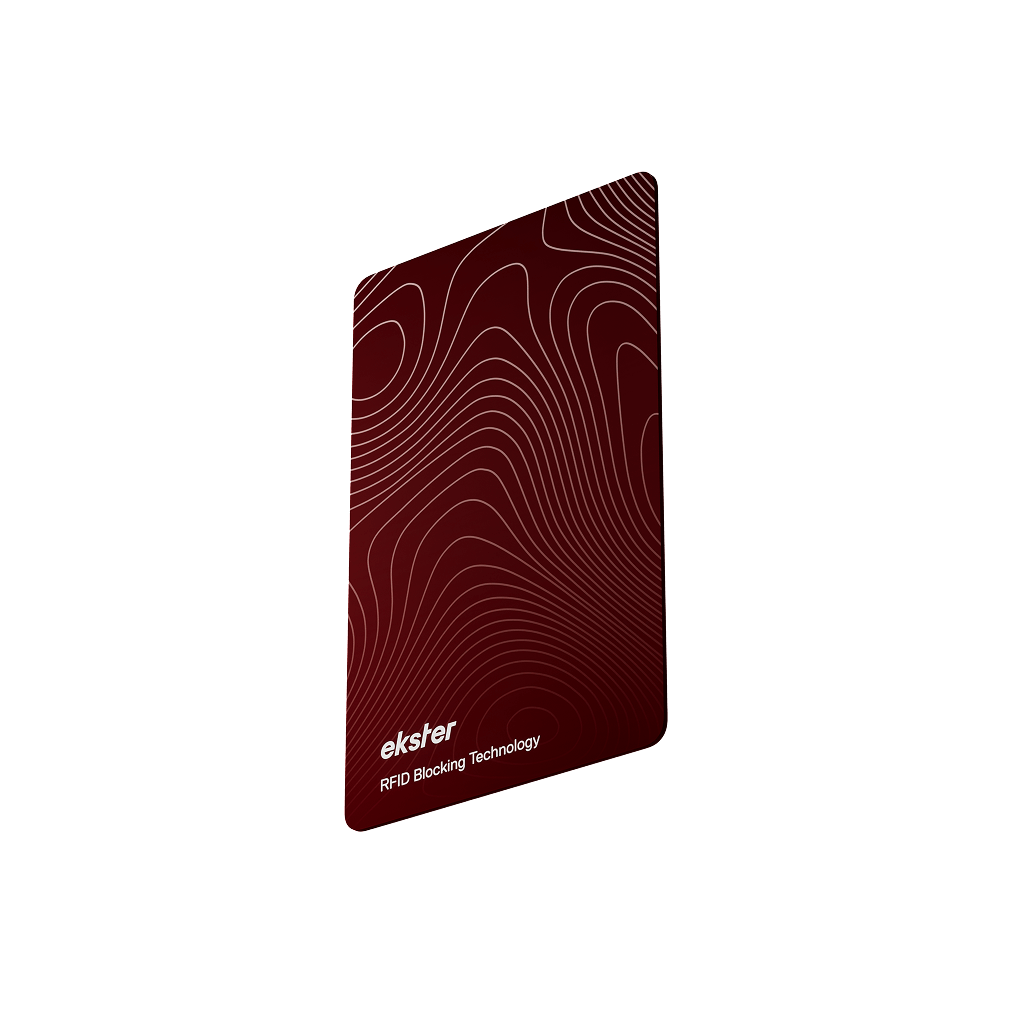
Losing your wallet is one of those tiny nightmares you don’t think about… until it happens. The Ekster Finder Card for Android is designed to make sure that moment never turns into a full-blown panic.
Whether you’ve just unboxed yours or you’re setting it up for the first time, this guide walks you through everything you need to know. From charging and pairing to using Lost Mode like a pro, let’s get you set up.

What you’ll need before you start
Before jumping into setup, make sure you’ve got the basics covered:
- An Android phone running Android 9.0 or newer
- The Google Find Hub app installed
- Your Ekster Finder Card (no extra hardware required)
If your phone already uses Google services, you’re good to go.
Step 1: Charge your Finder Card
Out of the box, your Finder Card needs a proper first charge. Don’t skip this step!
- Attach the magnetic charger to the charging points on the card
- The LED will start blinking, letting you know it’s charging
- Leave it charging for at least 2 hours
What the lights mean:
-
Blinking LED = charging
-
Solid LED = fully charged and paired
-
Flashing LED after full charge = charged but not paired yet
Once that’s done, you’re ready to connect.
Step 2: Pair your Finder Card with Android
This part only takes a minute.
- Open the Google Find Hub app on your phone.
- Press the button on your Finder Card once to wake it up. You’ll hear a sound when it activates.
- Tap Connect in the app and follow the on-screen steps
When pairing is complete, you’ll see “Ekster Finder Card” appear in the app. That’s your confirmation.
Quick tip: If the card isn’t paired within 10 minutes, it’ll go back to sleep. Just press the button again to wake it up and retry.

Setup complete? Now the fun begins
Once paired, your wallet officially becomes unlosable.
Find your wallet instantly
- Ring it directly from the app
- See its location on a map using the Google Find My Device network, powered by hundreds of millions of Android devices worldwide
Use your voice (yes, really)
You can ask Google Assistant things like:
- “Hey Google, play a sound on my wallet”
- “Hey Google, where’s my wallet?”
Enjoy low-maintenance tracking
- Up to 6 months of battery life per charge
- No subscriptions
- No constant charging anxiety

How to enable Lost Mode
If your wallet actually goes missing, Lost Mode turns the entire Android network into your backup plan.
- Open the Google Find Hub app
- Go to the Items tab and select your Finder Card
- Scroll to Lost Mode and tap Enable
- Review the info and tap Continue
- Add a phone number or email where you can be reached
- Tap Activate
That’s it. Your Finder Card is now actively helping you get your wallet back.
How to reset your Finder Card
If you’re switching phones or troubleshooting, a reset is easy:
- Press the button three times quickly
- On the fourth press, press and hold (up to 5 seconds)
- You’ll hear a confirmation sound
- The LED will start flashing
The card is now back in pairing mode and will go to sleep if not paired within 10 minutes.
Got an “Unknown Ekster Device” alert?
Android may notify you if an unfamiliar tracking device is nearby. If that happens, you can make it ring through the system notification to locate it.
To disable the device:
- Find the ON/OFF button on the top front
- Press it five times within two seconds
- You’ll hear a confirmation sound
To enable identification again:
- Press the same button six times within two seconds
Finder Card specs at a glance
|
Specification |
Details |
|
Dimensions |
85 × 53.9 × 2.4 mm |
|
Network |
Google Find My Device |
|
Coverage |
Worldwide |
|
Water Resistance |
IPX5 |
|
Ringer Range |
Up to 90 m (300 ft) |
|
Battery |
Rechargeable, up to 6 months per charge |
|
Operating Temperature |
0°C – 45°C (32°F – 113°F) |
You’re all set to start tracking
Once your Android Finder Card is up and running, losing your wallet goes from stressful to… mildly annoying at worst. And honestly? That’s the goal.
If you want tips on getting the most out of it day-to-day, or how to pair it with your Ekster wallet setup, just reach out to our support team at nest@ekster.com, and we’ll help you out.


